Help Centre
Clear help, one task at a time.
Find straightforward answers and current-interface pictures for setting up INR Wizard, recording results and doses, managing testing and dose reminders, checking sound, creating reports, and protecting the journal.
Start with a task
What would you like help with?
Start here
About INR Wizard & Your Data
What is INR?
INR stands for International Normalised Ratio. It is a standardised number derived from a prothrombin-time blood test, which measures how long a clot takes to form in a blood sample. A result can come from a laboratory sample or, for an appropriately trained person, a fingertip home meter. Only the healthcare team should set and interpret the person’s target range. Read the MedlinePlus PT/INR overview.
What does INR Wizard hope to achieve?
The app is intended for people aged 17 or over who keep INR and clinician-prescribed anticoagulant records, and for carers helping them keep that record. It aims to bring patient-entered home and laboratory results, clinician-provided schedules, actual-dose history, symptom check-ins, reminders, and shareable reports into one iPhone journal. It helps preserve a clear history for review and clinician conversations; it does not promise a treatment result.
Does INR Wizard measure or interpret INR?
No. It records a result copied from a meter or laboratory report. It can flag a measured value outside the current clinician-provided range saved in the app, but it cannot verify the result, determine whether it is safe, diagnose a condition, or replace a laboratory, meter instructions, or healthcare professional.
Can the app tell me what dose to take?
No. It never calculates or recommends a dose, chooses tablet combinations, creates a corrected or true INR, or gives catch-up, hold, resume, increase, or decrease instructions. A schedule shown in the app is only what the patient entered from a clinician-provided source.
Is INR Wizard a medical device or clinical decision-support system?
No. INR Wizard is offered as a patient-entered record and communication aid. It does not measure, diagnose, prescribe, verify safety, or make treatment decisions, and it claims no regulatory certification or clearance.
Can I turn on a calibrated, corrected, or estimated INR?
No. New installations and restored profiles cannot activate such a feature. A migration-only legacy screen may remain on one previously entitled test installation and can show a clearly labelled, non-measured laboratory-equivalent estimate. It never replaces a measured INR or changes a dose, and it is not a generally available Version 1.0 feature.
Where are the main features?
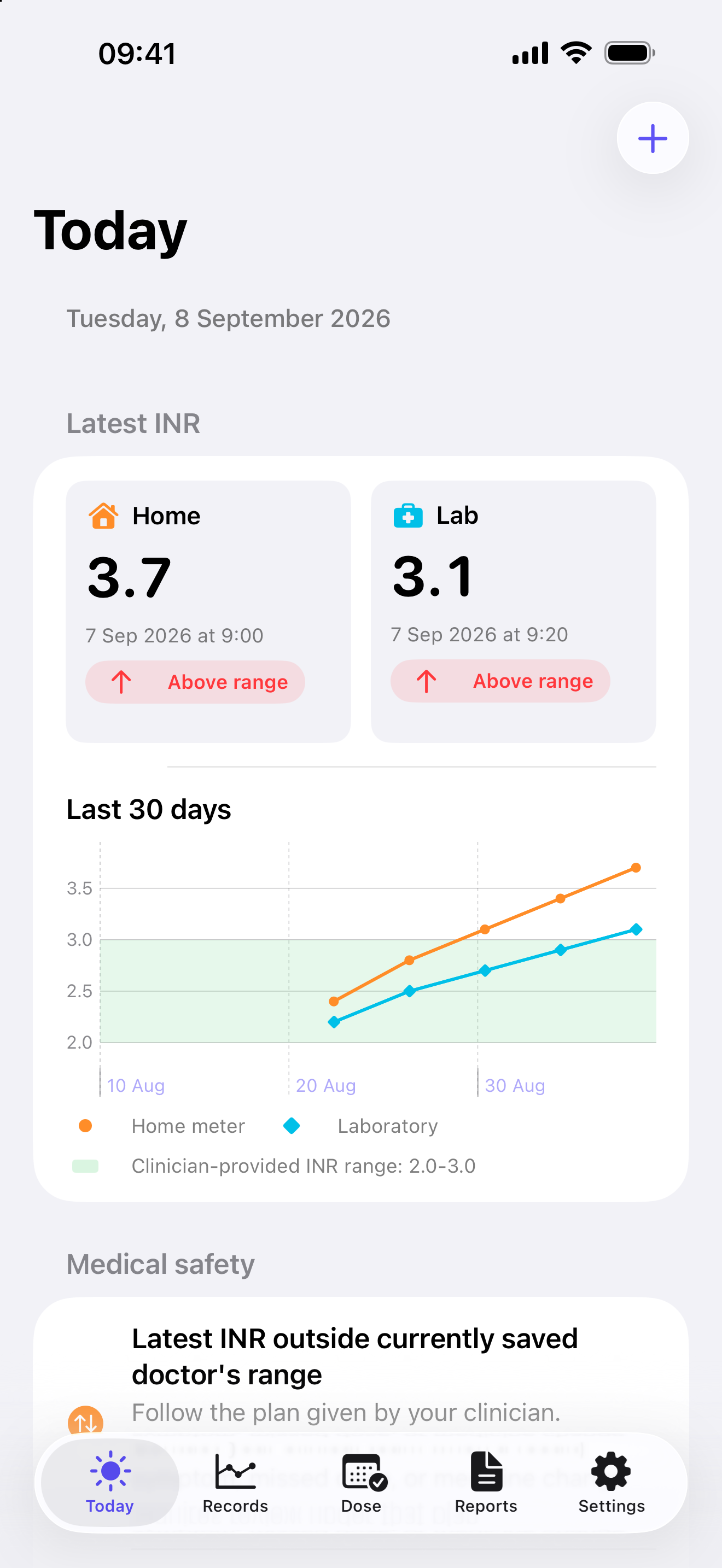
Today shows latest home and laboratory results, recorded schedules, dose actions, symptom check-in, treatments, and a safety link. Records contains INR history and comparisons. Dose contains schedules, dose reminders, and actual-dose history. Reports creates date-range PDFs. Settings contains the profile, care team, treatments, testing reminders, notification readiness, range alerts, automatic and manual backup, restore, reset, and About INR Wizard & Your Data.
Which iPhones and iOS versions are supported?
INR Wizard supports iOS 17 or later. Alarm delivery requires iOS 26.1 or later. On older supported versions, saved reminder schedules attempt notification delivery, which still depends on notification permission, iPhone settings, and iOS.
Where is Version 1.0 available?
Version 1.0 is available now on the App Store in India for iPhone. It is free and needs no account or sign-in.
Where can I review the safety and privacy boundaries in the app?
Open Settings → About INR Wizard & Your Data, or use Learn more about safety and privacy on Today. The page explains INR, reminder limits, how recorded results are compared, backup and sharing, medical boundaries, and emergency guidance.
Records
Adding and correcting INR results
How do I record an INR result?
Open Today and choose Log INR, or open Records and add a record. Enter a home result, a laboratory result, or both. Use the specimen or collection date, not the date a report was downloaded. Add the exact time if known. Optional details can include meter name, strip lot, laboratory, reagent lot, and notes.
What if the exact time is unknown?
Turn off the exact-time option and save the collection date only. Both INR and actual-dose records can preserve an unknown exact time. Exact times are required before readings can be included as a deliberate comparison pair.
Can I add an older result?
Yes. Use the actual collection date and the exact time if known. A future collection date cannot be saved.
What if the meter displays an error, “<”, or “>”?
Do not invent a numeric result. Follow the meter instructions. If it is useful for the record, copy the exact display into Notes.
How do I correct or delete a result?
Tap a record to edit it. Swipe to delete and confirm. Deleting removes that entry from the journal and future reports and cancels any local range alert associated with it.
Paired readings
Comparisons and the recorded target range
What is a comparison pair?
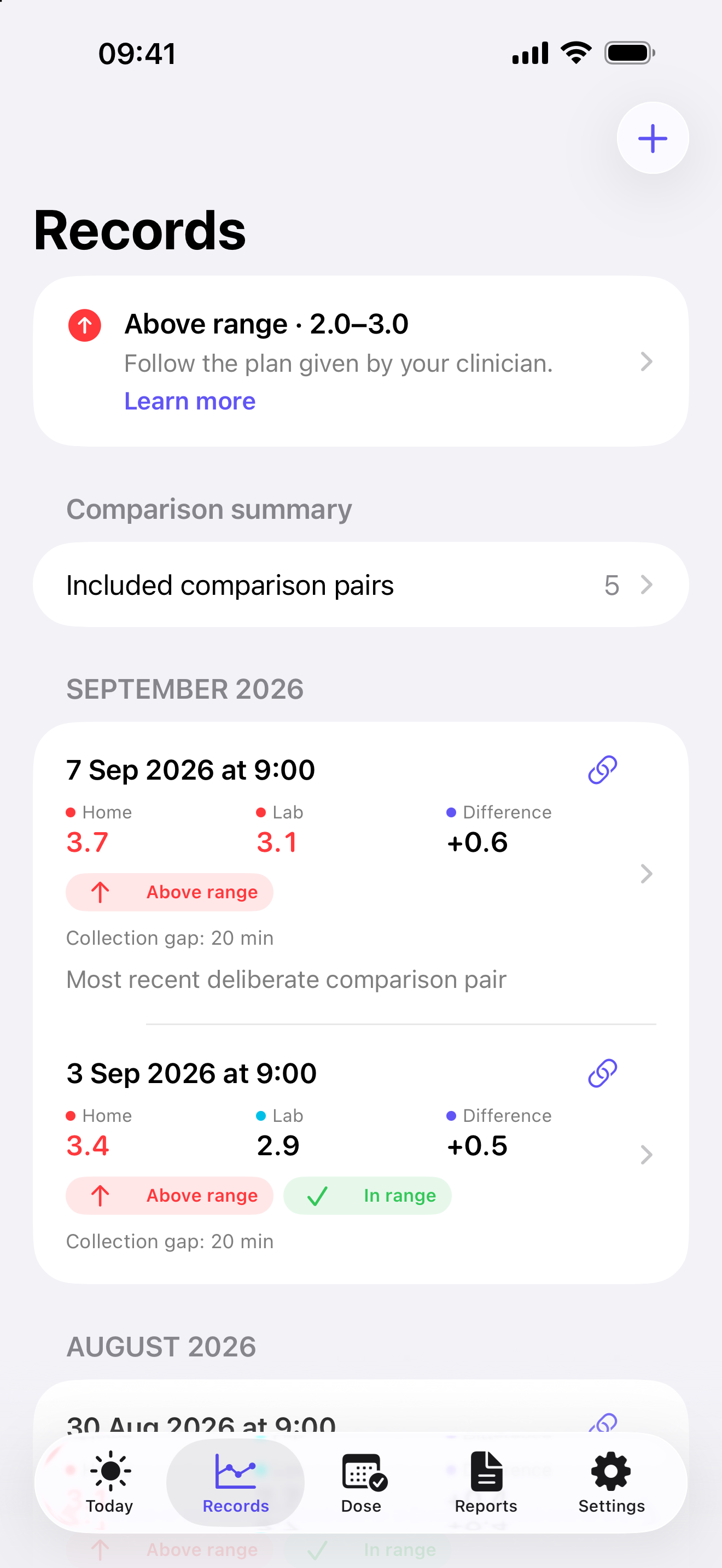
A comparison pair contains a home and laboratory measurement with exact collection times. Include them only when the two samples were deliberately collected as one pair under the same protocol. The app shows the collection gap but does not decide whether that gap is clinically acceptable.
What do the comparison numbers mean?
The signed difference is home INR minus laboratory INR. The percentage compares that difference with the laboratory value. A positive number means the home reading was higher; a negative number means it was lower. These are descriptive comparisons, not corrections or reasons to change medication.
When does a provisional median summary appear?
It requires at least five explicitly included pairs using the same complete recorded meter, strip-lot, laboratory, and reagent combination. INR Wizard can then show provisional median Home-minus-Lab and percentage differences for that recorded method combination. These are descriptive only—not calibration, correction, treatment guidance, or a reason to change medication.
How does the clinician-provided range work?
Settings stores the current lower and upper values and their source. Measured home and laboratory values outside that inclusive range are highlighted in colour and words. INR Wizard stores the current range, not its change history, so it may not be the range that applied when an older result was measured.
When does INR Wizard attempt an out-of-range alert?
If enabled and authorised, INR Wizard attempts local notification delivery for a measured result collected today that lies outside the currently saved range. Older entries remain highlighted but do not create a new alert for an old event. The absence of an alert does not mean a result is safe.
What if a home INR is above 4.5?
The app directs the user to contact a healthcare professional immediately, even without bleeding symptoms, and recommends laboratory confirmation because home-meter results above 4.5 may be less reliable. Do not change Warfarin based on the app. Read the FDA’s home-meter safety advice.
Treatment record
Treatments and prescribed schedules
What treatment information can I keep?
The app supports multiple anticoagulants and physicians. A treatment can include medicine name, oral or injection route, prescriber, available strengths, dosage instructions, and treatment dates. These details are patient-entered and are not electronically verified.
How do I add a weekly Warfarin schedule?
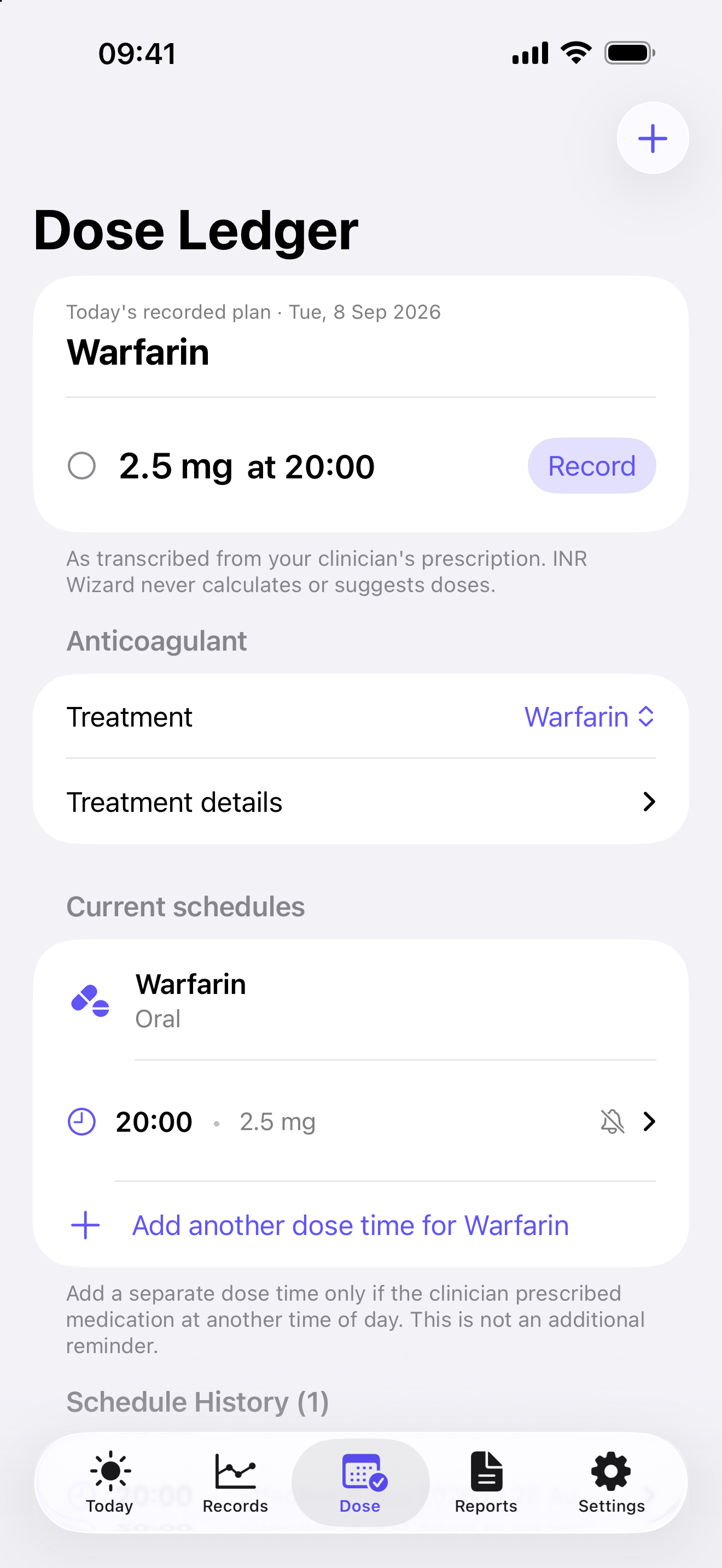
Add the treatment in Settings, then open Dose. Select the treatment, dose time, first effective date, clinician or source, and every daily amount, including 0 mg where that is the recorded prescription. Review the complete seven-day schedule before saving it.
What does the weekly total mean?
INR Wizard adds the seven patient-entered daily amounts for that dose time and shows the total. This is simple arithmetic on the recorded schedule, not a calculated or recommended dose.
What does “Add another dose time…” mean?
Use it only if the clinician prescribed another administration time during the day. It creates a separate clinical schedule. It is not a way to add a second notification for the same dose.
How are schedule changes preserved?
Change schedule… normally creates a new version from the selected effective date while retaining the earlier version and linked dose records in Schedule History. Once a dose record refers to a schedule version, the original clinical details are protected from being silently overwritten.
Can I correct, stop, or delete a schedule?
Use Fix a data-entry mistake only for an unused schedule. Stop schedule moves it into history, retains earlier records, and stops preparing new reminder occurrences. Delete mistaken entry is available only when the entry is unused and has no dependent schedule history.
Reminders
Dose reminders, Alarm delivery, and sound
How do I turn on a dose reminder?
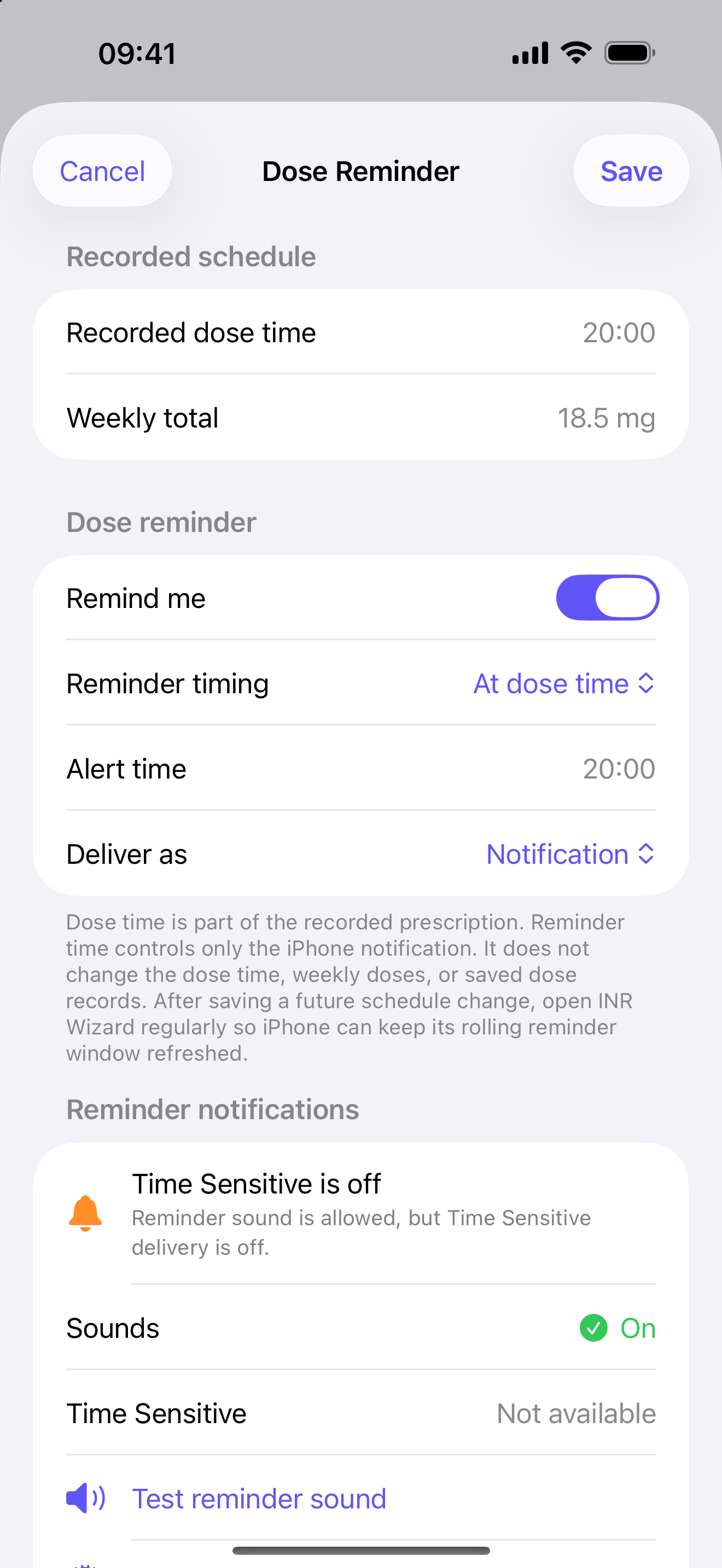
Open Dose, select the current schedule, then Reminder. Remind me is a separate toggle. Turn it on, then choose At dose time or Custom time in the timing picker. A custom reminder must differ from the recorded dose time. INR Wizard prepares reminder occurrences only for days whose recorded scheduled dose is above 0 mg. On compatible iPhones, you can also choose Notification or Alarm delivery.
How do I check notification and sound readiness?
Open Settings → Reminder notifications, or Dose → Reminder. The status panel shows Alarm permission and scheduled alarms when supported, plus Notifications, Sounds, and Time Sensitive status. Use the generic, privacy-safe test controls to check the selected route. Tests contain no patient, medicine, dose, or INR details.
Why does “Alarm permission needed” appear?
A saved reminder is set to Alarm, but alarm permission has not yet been granted on this iPhone. Choose Allow Alarms to ask iPhone for permission. Until permission is granted, INR Wizard attempts notification delivery instead; delivery still depends on notification permission, iPhone settings, and iOS and may be silent under Focus or Silent mode.
Why does the app say alarms are set only for roughly the next 7 days?
Weekly dose and testing reminders set to Alarm repeat on their own. Reminders that fall on specific dates, such as a schedule change, a treatment end date, or a one-time or multi-week testing reminder, are set as alarms only for roughly the next 7 days. Later dates are prepared as notifications until you next open INR Wizard, which refreshes that window. Notification delivery depends on notification permission, iPhone settings, and iOS and may be silent under Focus or Silent mode, so open the app regularly and do not use it as your only reminder.
What does the “Last sync” line mean?
The Alarms section can show the most recent sync time and aggregate counts. Requested is the number of reminder occurrences the app evaluated, including any that could not be scheduled. Scheduled and sent as notifications mean that iOS accepted a scheduling request through that route. The counts do not contain a patient name, medicine, dose, INR value, reminder title, or reminder date. None proves that a reminder rang, appeared, was seen, or was acted upon.
Does changing the reminder change the prescription?
No. Reminder time controls only the iPhone notification. It does not change the recorded dose time, weekly amounts, schedule history, or actual-dose records.
Why did a reminder arrive without sound or not appear?
Confirm the current schedule has a dose above 0 mg that day and check its reminder time and delivery choice. For Notification delivery, use Open iPhone Settings and allow Notifications, Sounds, and Time Sensitive Notifications. For Alarm delivery, allow Alarms when INR Wizard asks. Hiding or locking INR Wizard with Face ID can make alarms fail silently while the app remains hidden or locked. After travel or a clock change, a date-specific alarm may ring at the previous time-zone wall-clock time until you open INR Wizard again. Reopen the app after permission, schedule, travel, or clock changes so it can reconcile delivery. Never rely on INR Wizard as the only medication reminder.
What is the difference between Notification and Alarm delivery?
Notification dose reminders are marked Time Sensitive when iPhone permits it, but Focus, Silent mode, notification settings, device state, and iOS can still affect them. On iOS 26.1 or later, Apple documents that an authorised AlarmKit alarm can override Silent mode and Focus when it fires. It appears full screen; the alarm and the name INR Wizard are visible on the Lock Screen, and Apple’s alarm screen follows the iPhone language. iOS may also present the alarm on a paired Apple Watch; INR Wizard itself remains an iPhone app. If Alarm permission or support is unavailable, INR Wizard attempts notification delivery instead; delivery still depends on notification permission, iPhone settings, and iOS. Neither route is a Critical Alert, an emergency alert, or proof that a dose was taken.
Home and laboratory testing
INR-testing reminders
How do I set a testing reminder?
Open Settings → Testing reminders. Home and Laboratory reminders are independent. For each method, choose a start date and time, then Once, Weekly, or every 2, 4, 6, 8, or 12 weeks. Only copy a schedule you have chosen or received from the appropriate healthcare professional.
Does INR Wizard recommend when I should test?
No. It does not choose or recommend a testing interval, record a test automatically, mark a test as completed, or justify delaying a test if a notification is absent. Follow the testing plan supplied by the appropriate healthcare professional.
Can testing reminders use Alarm delivery?
Yes, on a compatible iPhone with Alarm permission. Otherwise INR Wizard attempts ordinary local notification delivery with generic text and its bundled reminder tone when Sounds are enabled. Delivery still depends on notification permission, iPhone settings, and iOS. Testing notifications are not Time Sensitive, and neither route is a Critical Alert.
Why does “Too soon for an alarm” appear?
A one-time testing reminder set to Alarm is one minute or less away. Choose Change time to select a later time. If you choose Save anyway, INR Wizard attempts notification delivery for that occurrence instead of an alarm. The same one-minute rule applies to any reminder set to Alarm: for an occurrence that is one minute or less away when INR Wizard prepares it, the app attempts notification delivery, shows an alert titled Delivered as a notification instead, and prepares later occurrences as usual. Delivery still depends on notification permission, iPhone settings, and iOS and may be silent under Focus or Silent mode.
Why should I reopen INR Wizard?
For repeating multi-week schedules, INR Wizard prepares reminders in a rolling window when the app opens; when set to Alarm, that means alarms for roughly the next 7 days and notifications beyond that. iOS still controls delivery, so the app should be opened regularly and a missing reminder must not be treated as a reason to delay a planned test.
Today and Dose Ledger
Actual doses and symptom check-ins
What can I record in the Actual Dose Ledger?
Choose a treatment and today or an earlier date. Record the status as Taken, Missed, Skipped, or Not sure. When Taken is selected, enter the amount actually taken. If it differs from the planned amount, the app records the difference but gives no next-dose advice.
Is the schedule shown on Today a recommended dose?
No. Today shows patient-entered prescription information copied from a source recorded in the app. Use the card to record what actually happened, including a missed dose, but do not treat the display as a calculation, recommendation, or instruction to change medication.
What if no recorded schedule applies?
Enter the planned amount from the checked prescription or clinician source. Record the exact time if known or mark the time as unknown.
How do I record a dose taken later than scheduled?
Open the scheduled dose and choose Taken. Leave Time taken known on and set Time taken to when the medication was actually taken. For example, a dose scheduled for 6:00 PM and taken at 7:00 PM keeps 6:00 PM as the scheduled time, 7:00 PM as the patient-reported taken time, and the later save or edit time as the logged time.
What should I do after a missed dose?
INR Wizard cannot advise a catch-up dose. Follow the instructions supplied by the appropriate healthcare professional.
What are symptom check-ins?
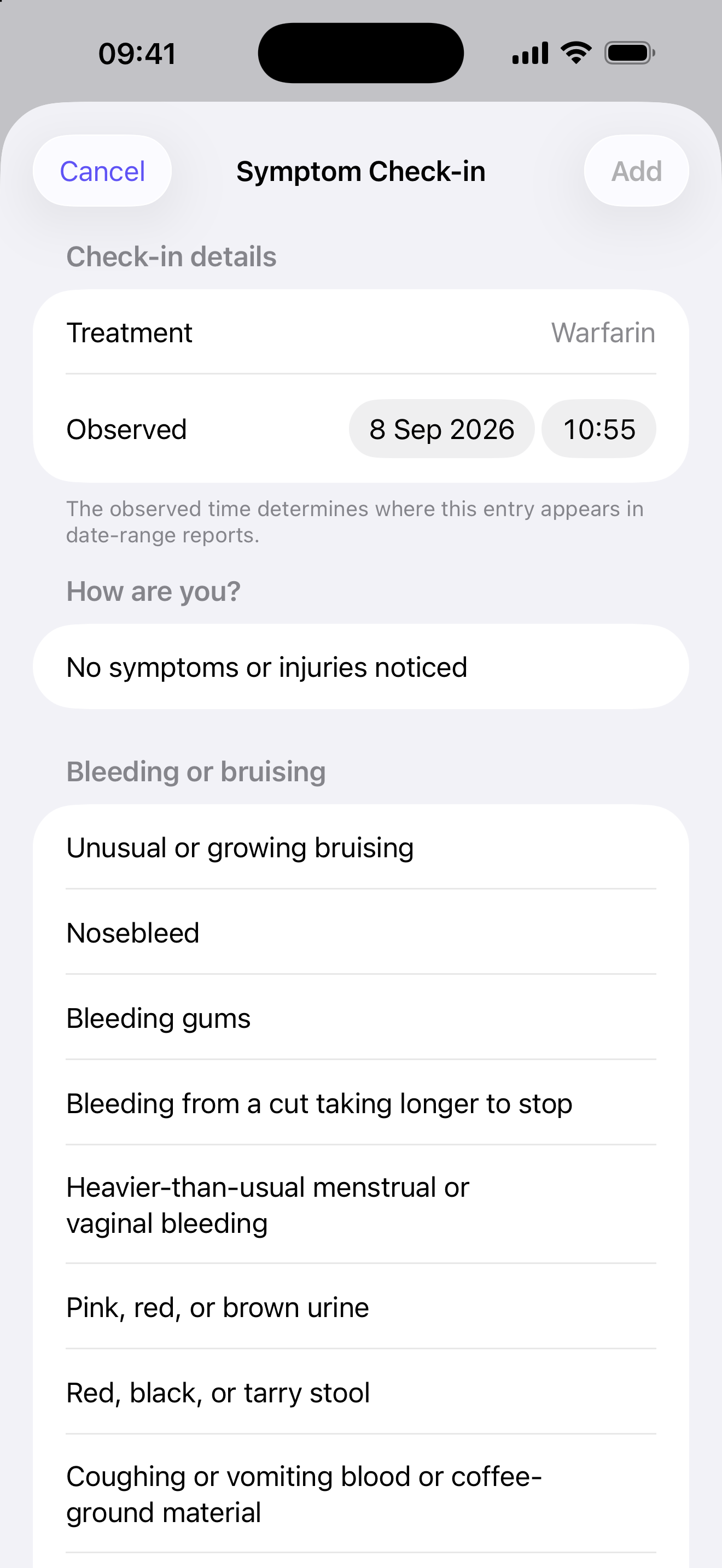
For a treatment identified as Warfarin, Today offers quick selections for symptoms and injuries noticed at a chosen time. These are patient observations, not diagnoses or proof that Warfarin caused a symptom.
Does “No symptoms noticed” mean everything is safe?
No. It records only what was noticed at that check-in. It does not mean the treatment or an INR result is safe.
Creating and sharing reports
How do I create a report?
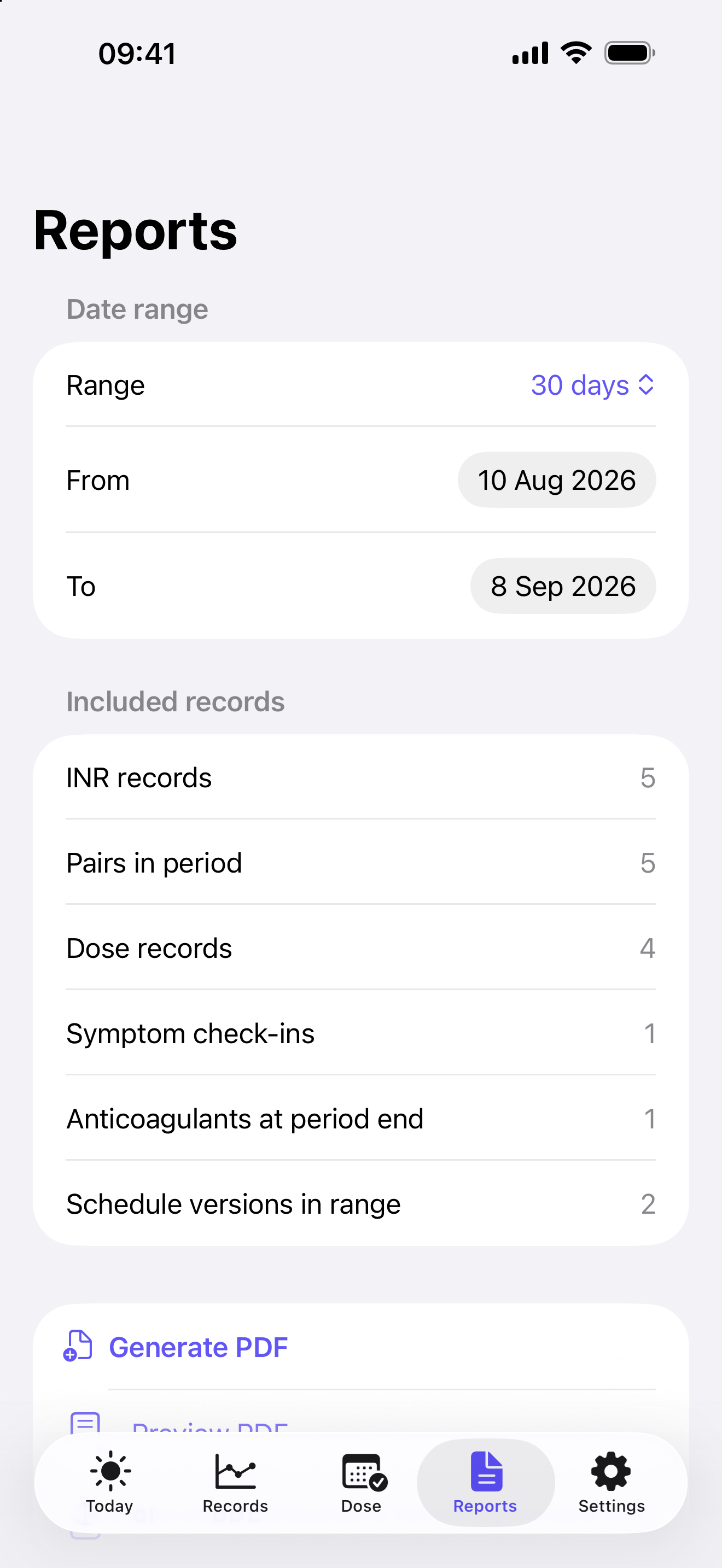
Open Reports and choose an inclusive 7-, 30-, or 90-day period or Custom dates. Review the record counts, generate the PDF, and preview it with the iPhone viewer. Choose Share PDF only when you are ready to select a destination.
What can the report contain?
Depending on the selected dates, it can include patient and care-team details, anticoagulants, the current saved target range, schedule versions, symptom check-ins, method details, measured INR values and paired differences, and actual-dose records.
Which target range appears?
The report uses the current clinician-provided range saved when the PDF is generated. Because range history is not stored, it may not be the range that applied on every measurement date.
Why should I regenerate a report?
Changing the dates, records, or profile information makes the previous preview out of date. Generate it again before sharing. Previously saved or shared PDFs remain separate files outside the app.
Language
Language
Which language does Version 1.0 use?
Version 1.0 is in English, and Settings shows no language option. Patient-entered names, notes, and source text are kept as typed.
Why do Files, Share, or alarm screens use another language?
Those screens belong to iOS and follow the iPhone or per-app system language.
Data protection
Backup, restore, and reset
How do I create a manual backup?
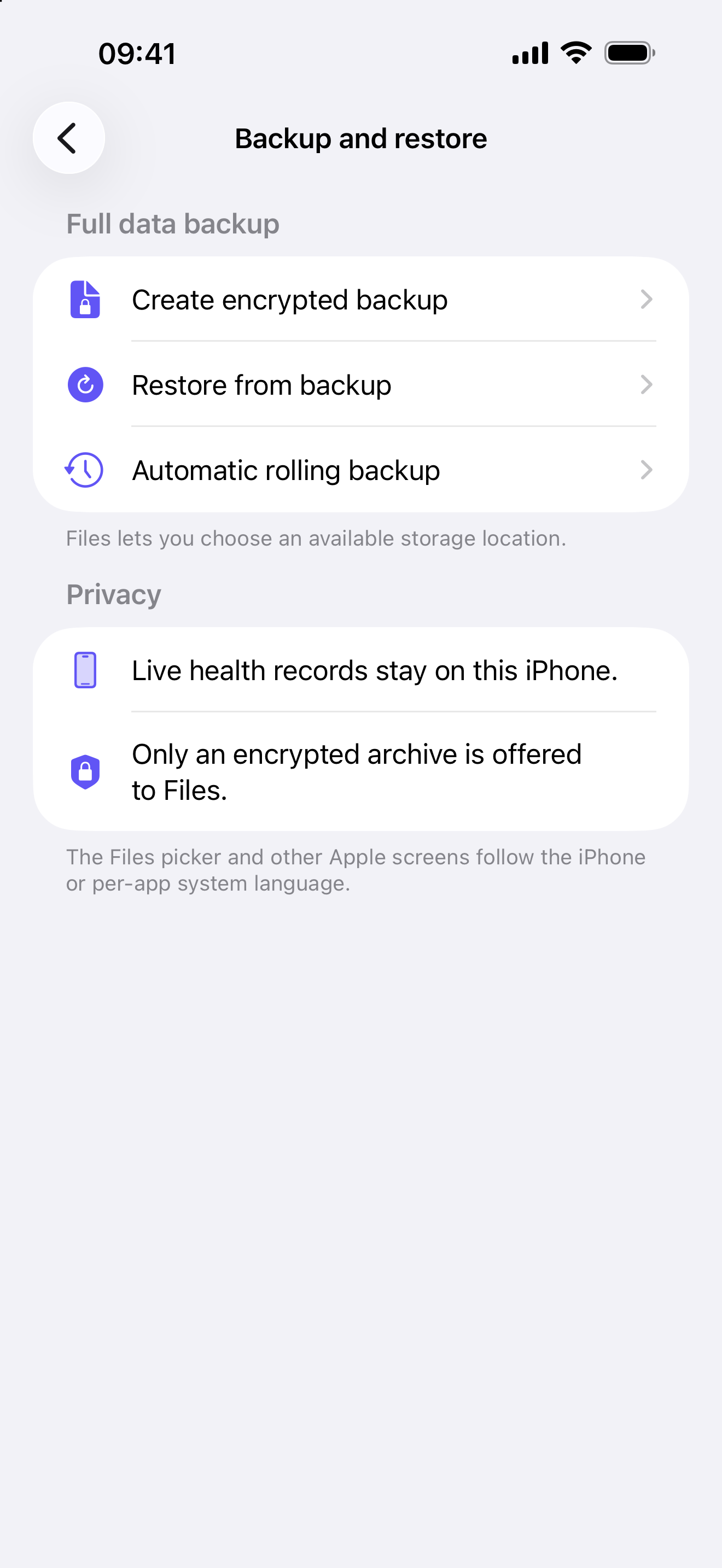
Open Settings → Backup and restore → Create encrypted backup. Enter and confirm a password of at least 12 characters and choose a trusted Files destination. The backup contains sensitive health information even though it is encrypted. INR Wizard cannot recover a lost password.
What is included in the backup?
It includes patient and physician details, treatments, schedule versions, INR and dose history, clinician instructions, symptom check-ins, home and laboratory testing-reminder schedules, saved dose and range-alert preferences, and app language. Generated PDFs, automatic-backup settings and password, and iPhone notification and Alarm permissions are not included.
How does the rolling automatic backup work?
It keeps one encrypted file inside INR Wizard on this iPhone and replaces that file after each successful run. Choose daily or weekly and a preferred time, or use Back Up Now. Its password is stored in this iPhone’s device-only Keychain and the rolling file is excluded from device backup. iOS controls the exact background time, so Background App Refresh, device state, or Low Power Mode can delay it. The app also checks when it opens. Keep a separately exported backup as well.
Why does automatic backup say it is paused while old reminders are removed?
INR Wizard could not yet verify that reminder cleanup finished after data was replaced or erased. It pauses automatic background backup while it retries that cleanup, then resumes automatically once cleanup succeeds. Reopen INR Wizard to let it retry. If the message remains, use the technical-support contact below before relying on the automatic backup.
What happens if I turn automatic backup off?
The one rolling file and its saved device-only password are deleted. The live journal is not changed. INR Wizard cannot recover the automatic-backup password after the app is removed.
How do I restore a journal?
Choose the encrypted backup, enter its password, then verify and preview it. Verification changes nothing. Review the patient identity, dates, language, counts, and reminder preferences. Type the confirmation word exactly as shown, then choose Replace all data and restore.
Can I restore during first setup?
Yes. On a fresh installation, choose Restore an existing backup during setup. INR Wizard verifies and previews the backup before any journal is replaced.
Why is the patient identity locked after setup?
The lock protects ownership of the existing records. To use INR Wizard for a different patient, erase all app data and complete setup again. Export anything that must be retained first.
Does restore merge two journals?
No. Restore permanently replaces the current journal and never merges patients or histories. The complete archive is decrypted and validated before replacement. A wrong password, damaged file, or failed validation does not replace saved records. A successful restore removes cached PDFs and the previous rolling backup and password, leaves automatic backup off, and attempts to recreate eligible saved reminders using the iPhone’s current notification and Alarm permissions for each selected delivery route. Those system permissions are not restored. Review every restored reminder before relying on it; if iOS cannot confirm removal of an older alarm, INR Wizard warns and retries when reopened.
How do I erase everything?
Open Settings → Erase all app data, review the first warning, then type the confirmation word exactly as shown. Reset removes the live journal, generated reports, rolling backup, and saved backup password, requests removal of app notifications and alarms, then returns to onboarding. If iOS cannot confirm reminder cleanup, INR Wizard warns that an outdated alarm may remain and retries when reopened. Reset cannot erase exported Files, iCloud Drive, email, or printed copies, existing device backups controlled by Apple, support correspondence, or TestFlight data.
Technical help
If something is not working
An entry looks incorrect
Compare it with the original meter, laboratory report, prescription label, or clinician instruction. Correct the record in the appropriate INR, dose, treatment, or schedule screen.
A generated report is out of date
Return to Reports and generate it again after changing records, profile details, or dates. Preview the new PDF before sharing.
What should I check after a restore?
When the success screen appears, choose Continue, then review the restored patient, notification and Alarm permissions, and reminder schedules. If the restored journal does not match the preview or the app closes unexpectedly, contact support before repeating the restore.
The app says an outdated alarm may remain
Keep the iPhone nearby and open INR Wizard again so it can retry removing the old alarm. Review the Alarms section under Reminder notifications in Settings. Until cleanup is confirmed, do not assume that an old alarm has been removed; if the warning continues, contact technical support.
The app shows “Records unavailable”
This privacy-safe recovery screen appears instead of showing patient content when protected records cannot be opened. Follow the on-screen retry steps. If the screen offers an existing rolling backup, save that encrypted file somewhere safe before choosing any reset option, then contact technical support if access does not recover.
What should I include when reporting a problem?
Include the iPhone model, iOS version, INR Wizard version, what you tapped, what you expected, and what happened. A screenshot is useful if it contains no unnecessary health information. Do not email patient records, backup passwords, or sensitive data that is not needed to explain the problem.
Privacy and support
Your journal and technical support
The live journal is stored in protected app storage on the iPhone and marked to be excluded from ordinary device backup. INR Wizard requires no account or sign-in and has no advertising, analytics, tracking, CloudKit journal synchronisation, or developer-operated record server. A PDF or manual encrypted backup leaves INR Wizard only when the user selects a destination, which may include iCloud Drive; the optional rolling backup remains inside protected app storage and is also excluded from device backup.
For technical support, email kudige@icloud.com. This address is not monitored as an emergency medical service. Do not send patient records, backup passwords, or unnecessary health screenshots.